

Audit benefits
- Traceability: as these are administrative actions, it is vital to know When and Who did What between these actions on a workflow instance.
- Error analysis/detection and correction: by identifying the actions that have led to errors or incidents, the audit enables rapid and precise intervention to correct problems that have arisen both in a workflow instance and on a task form linked to a workflow instance, especially in a customer TAM context.
Retry audit on a workflow instance
After a Retry on an instance in error, the history of this action can easily be consulted via a system SmartObject called Process Instance Audit, by following these steps:
- Open K2 Management
- Locate the workflow instance and note its ID
- Go to the Workflow Reports/Workflow General/Helper system category
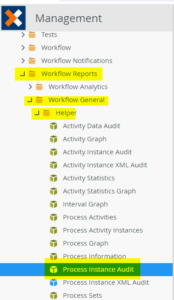
- Select the SmartObject Process Instance Audit
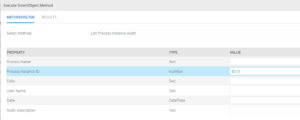
- Execute its List Process Instance Audit method, passing the workflow instance ID as input
- In the results, there will be a row whose description column contains ‘ErrorRepaired’, which means that a Retry action has been performed on the workflow instance. The User Name and Date columns will show who took the action and when. Isn’t that great? 😉

Go To Activity audit on a workflow instance
After a Go To Activity on a workflow instance, the history of this action can also be consulted via the same system SmartObject as in the case of a Retry, following the same steps, with the difference that the description will be ‘Process reset to activity [Activity System Name]’.
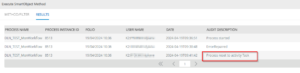
This method therefore enables unambiguous detection of a Go To Activity on a workflow instance, unlike the graphical approach which consists of searching a ViewFlow for an abnormally expired activity (coloured orange) while the process has continued elsewhere or gone backwards.
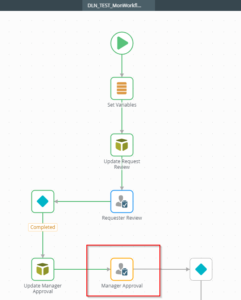
This graphical approach is therefore limited, as a workflow instance could very well have undergone a Go To Activity and then go back to a previously expired activity, so by doing our ViewFlow we wouldn’t be able to conclude that a Go To Activity action had indeed taken place.
Task Redirection audit on a workflow instance
After a task has been redirected from one user to another on a workflow instance, the history of this action can be viewed via a system SmartObject called Activity Instance Audit, by following these steps:
- Open K2 Management
- Locate the workflow instance and note its ID
- Go to the Workflow Reports/Workflow General/Helper system category
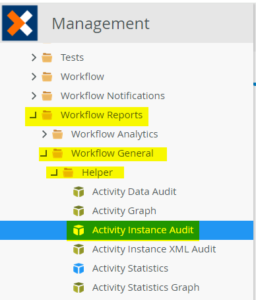
- Select the SmartObject Activity Instance Audit
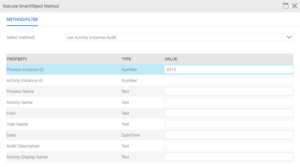
- Execute its List Activity Instance Audit method, passing the workflow instance ID as input
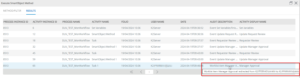
- In the results, you’ll find a line whose description column contains ‘Worklist item [Task Name] redirected from [Original User FQN] to [New User FQN]’, which means that a task has been redirected from one user to another in the workflow instance. The UserName and Date columns will show who took the action and when. Awesome ! No ? 😉
So to make things more practical, why not generate views on these SmartObjects? 😊
If you want to learn more, read this article on K2 APIs